



How to Get Started with CapCut Desktop Video Editor: A Beginner’s Guide

For beginners, finding simple video editing software is vital to producing engaging content. CapCut desktop video editor stands out with its versatile features designed for new users, making video editing simple and fun. While many tools are free, some advanced features do require payment.
This blog will guide you through the installation process, highlight basic features, and provide the first steps to get you started. Whether you want to edit videos for social media or personal projects, CapCut offers all the tools you need. Dive in and explore how to make your video editing journey enjoyable—read the complete blog for all the details!
What Makes CapCut Desktop Video Editor Perfect for Video Editing?
CapCut desktop video editor stands out for its ease of use and intuitive interface. Users can easily navigate through tools and features, making it perfect for beginners and experienced editors.
Key features include:
- Video background remover: Easily isolate subjects from their backgrounds.
- Trimming and cutting clips: Simplify editing tasks.
- Effects and transitions: Enhance videos with various visual styles.
- Text overlays: Add captions or titles to your projects.
These tools cater to all skill levels, allowing anyone to create stunning videos quickly. While CapCut offers many free features, some advanced tools require a subscription or purchase. This balance ensures that users can start editing without financial commitment while having the option to access more powerful tools as needed. CapCut is a versatile choice for anyone looking to improve their video editing skills.
How to Install CapCut Desktop Video Editor
-
Download from the Official Website
Visit CapCut’s official website by typing “capcut.com” in your browser. Look for the Windows “Download” button after accessing the site. Select this to initiate the download process for the setup file. After downloading, find the “CapCut_Setup.exe” file and double-click to run the installer. Finish the installation by adhering to the instructions.
-
Installation Process
To install CapCut on your computer, open your web browser and proceed to the CapCut site. Select the “Download for Windows” button to start downloading. Once it finishes, locate the file and double-click it to run the installer. Follow the prompts to complete the installation. CapCut is designed for use on both Windows and Mac devices.
-
Sign Up and Log In
To create a CapCut account, open the app and press the profile icon. Select “Sign Up” and choose to register with your email or a social media account like Google or Facebook. Enter your details, set a password, and verify your email to complete the sign-up process.
Getting Started with CapCut Desktop Video Editor: Basic Features
-
Importing Videos
Open the CapCut app on your computer. Begin a new project by selecting “Create project.” Find and click the “Import” button in the corner. This opens a window where you can find your video files. Select the videos you want and click “Open.” Now, drag the videos from the media library to the timeline. You can use this video editing software to create your project easily. Once done, save or export your work. Enjoy editing!
-
Trimming and Cutting Clips
Open CapCut and start a new project. Drag your video to the timeline. To cut, click the clip’s edge and pull it inward. Place the playhead where you want to cut and press “B.” Select the unwanted part and press “Delete.” This will refine your video length easily.
-
Adding Effects and Transitions
To add effects and transitions in CapCut, open your project and select the clips. Select the “Transitions” section to view the variety of options. Drag your chosen transition between clips. Adjust the duration by dragging the edges. Preview the effect to ensure it fits well. This improves the sleekness of your video.
-
Using Text Overlays
CapCut desktop video editor makes adding captions easy. You can use the AI caption generator to create accurate captions quickly. Just upload your video and select the auto caption option. The tool analyzes audio and generates text. You can then edit the captions to fit your style and needs.
-
Exporting the Final Video
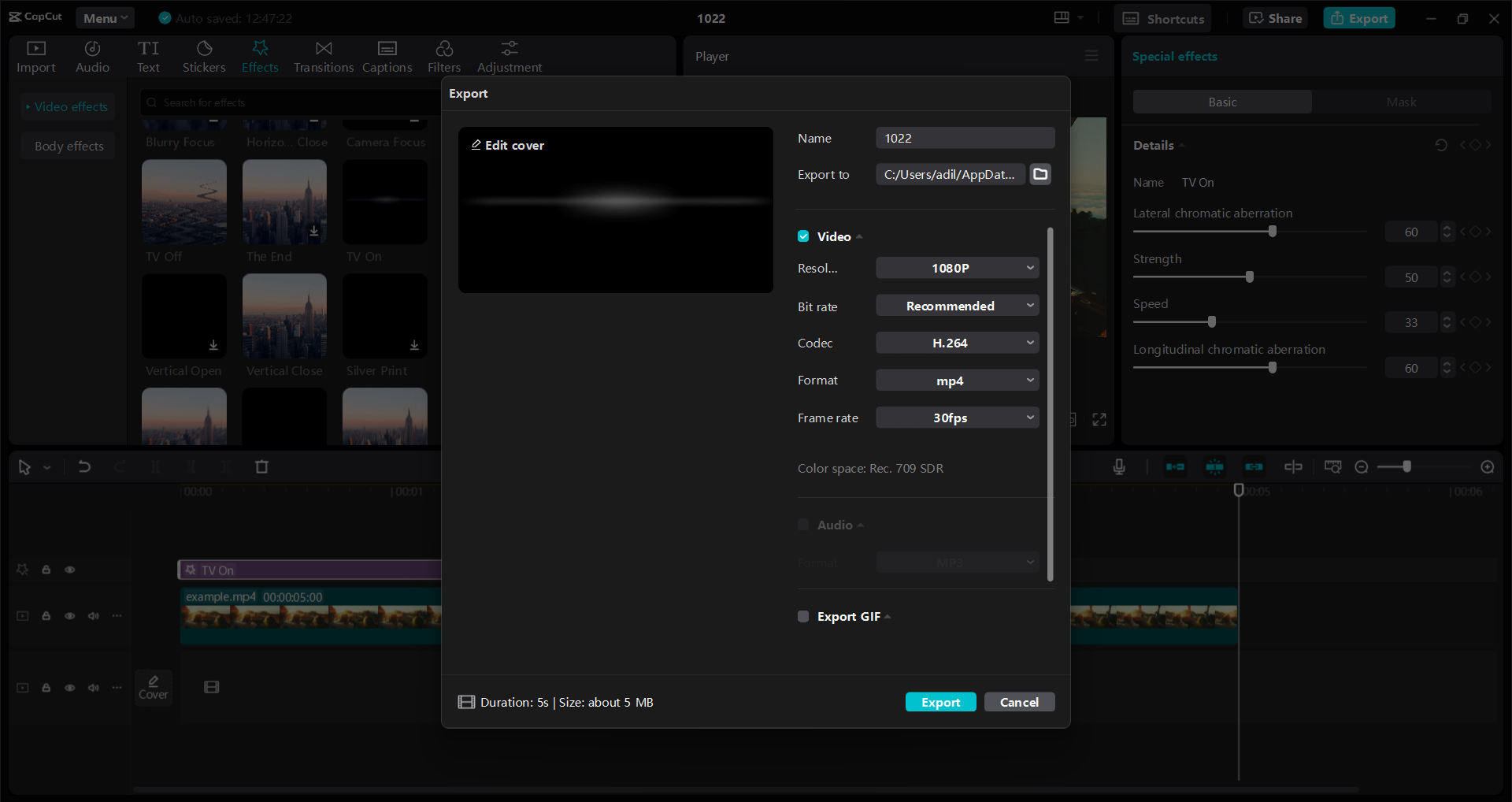
To save your project in CapCut, hit the “Export” button in the top-right section. Choose your resolution, like 1080p, 720p, or 4K. Choose 30 fps as the frame rate for smooth performance. Adjust the bitrate based on resolution. Finally, select the format as MP4 and click export.
Pro Tips for Smooth Video Editing with CapCut Desktop Video Editor
Planning your video content is key for smooth editing. It boosts focus and minimizes time spent. Start by outlining your main ideas and scenes.
- Organizing clips: Keep your clips, audio, and effects in order on the timeline. Label them clearly for easy access.
- Save projects often: Regularly save your work to avoid losing progress. This simple step can save hours of effort.
- Utilize features: Use undo/redo to fix mistakes quickly. Master keyboard shortcuts to improve your efficiency. The video background remover is a handy tool for enhancing your visuals.
These tricks will help you perfect your videos with CapCut. Stay organized, save frequently, and maximize the available tools. Happy editing!
Wrapping Up
CapCut desktop video editor is an excellent selection for novices needing dependable video editing tools. Its user-friendly design makes it easy to start editing right away. Features like the AI caption generator and video background remover are free to use, enhancing your editing experience without extra costs.
While some advanced tools require payment, the free features provide great value for new editors. If you’re ready to explore video editing, download CapCut today. Take the first step in video editing today with the CapCut desktop video editor!